Matrix on trustserv, a Data-Friendly WhatsApp Alternative
Introduction Link to heading
Annoyed by data espionage from big companies? Looking for alternatives? Here’s one, and it’s called Matrix.
With Matrix you can chat, call, and share files — just like WhatsApp, but open source and hosted on my own private server.
To get started you’ll need an account. The registration process was built by me and is still a bit rough around the edges, but functional. If you run into any display errors, forgive me. :)
Getting started Link to heading
Note: The screenshots below were taken in 2020 with a German-language client, and they are overdue for an update — Element’s interface has changed since then. Where a button label is quoted in German, the English equivalent follows in brackets. If something on your screen doesn’t match what’s described here, let me know and I’ll sort it out.
1) Register an account Link to heading
To register an account on matrix.trustserv.de, go to https://matreg.trustserv.de and follow the steps below.
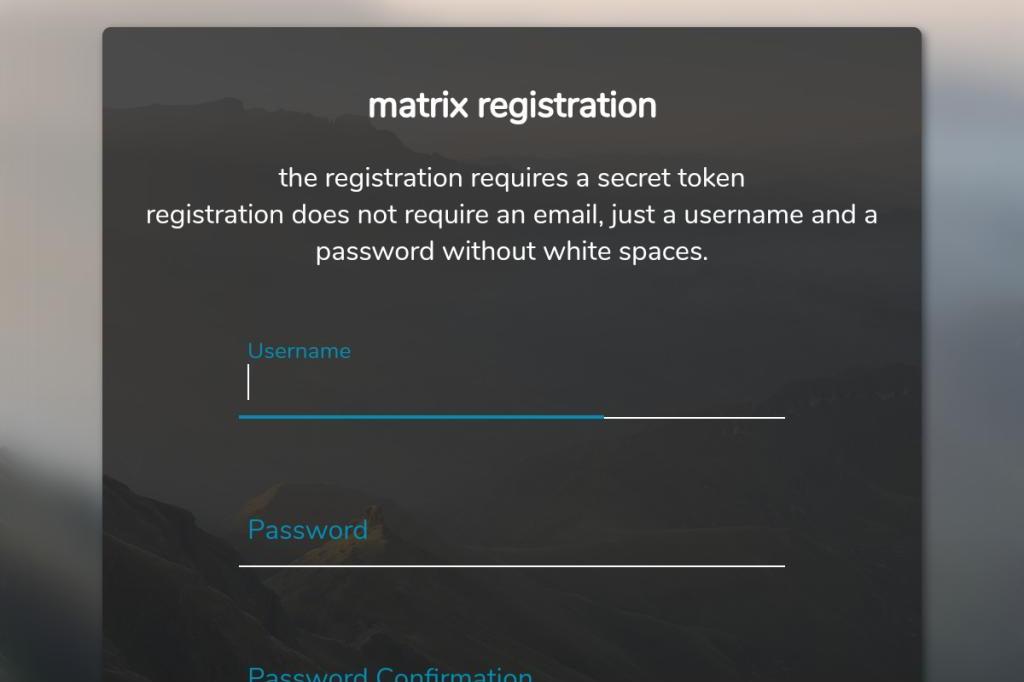
Enter a username and a password. You’ll also need a registration token — I hand these out personally, so just get in touch if you’d like to register.
The username may only contain the characters a-z, 0-9, and =-./'
When you click “Register” you’ll either see an error or a welcome page.
Error:
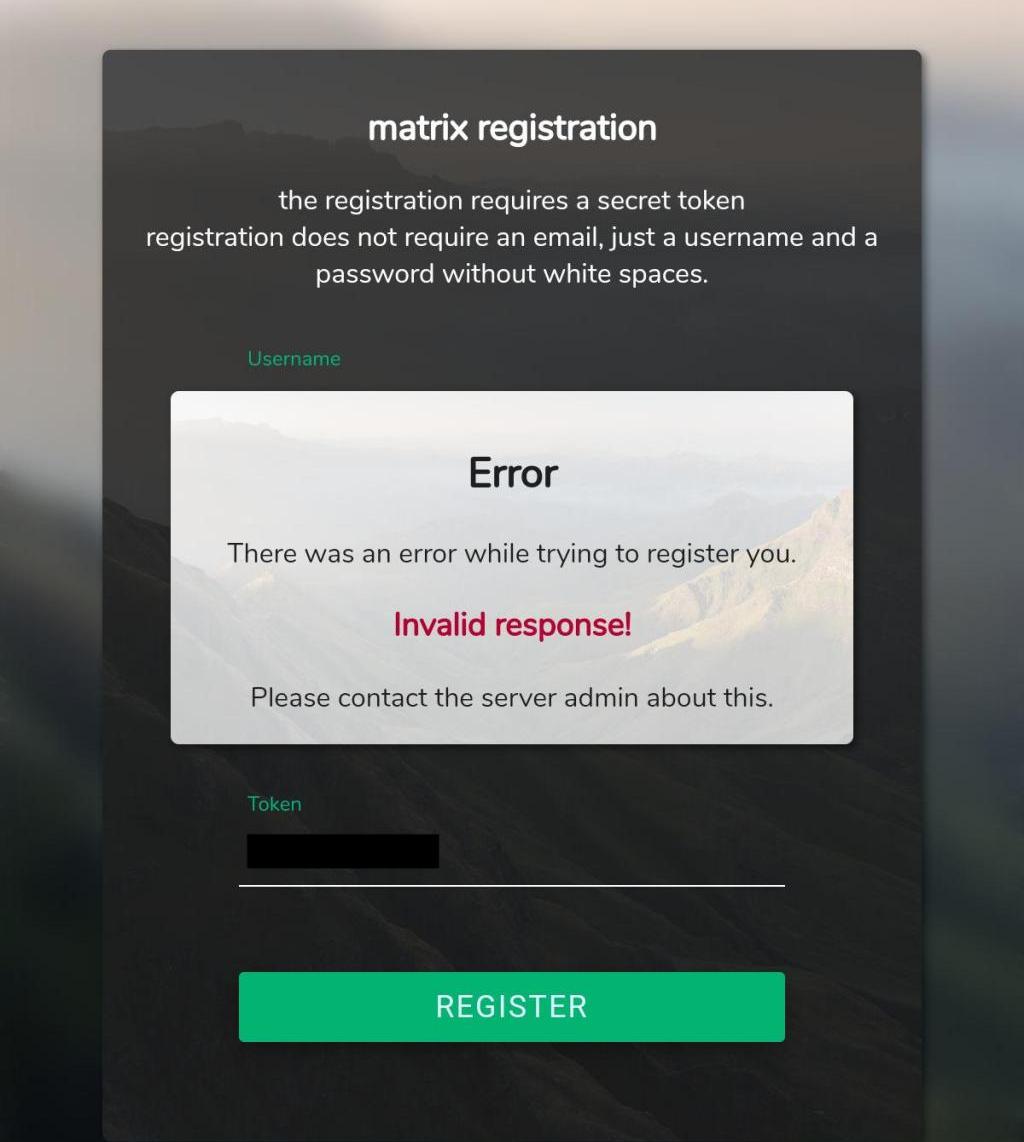
If you see this, please contact me — error messages are currently suppressed and only logged server-side, so I’ll need to look it up for you.
Success:
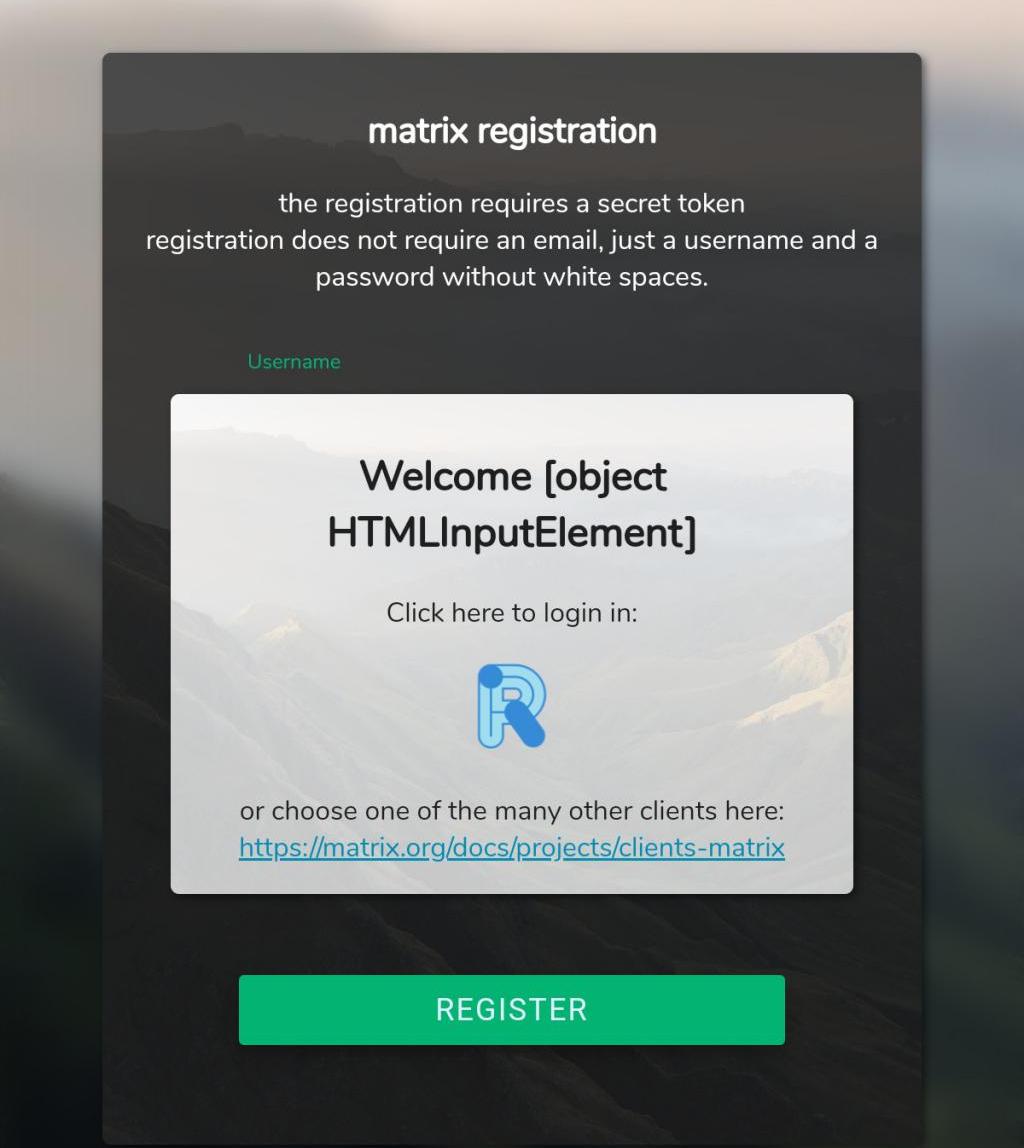
Your Matrix account on trustserv.de is ready. Now you need a client.
2) Get a client Link to heading
On a desktop or laptop Link to heading
The browser client is the easiest route: visit https://riot.trustserv.de, click “Anmelden” (“Sign in”), and enter your new credentials. That’s it — you can skip ahead to step 4.
Alternatively, download the Element app for Windows, macOS, or Linux from https://element.io/get-started. If you go this route, continue with step 3.
On a phone or tablet Link to heading
Install the Element app — either from the Google Play Store, from F-Droid, or from the App Store on iOS.
You can also use https://riot.trustserv.de in a mobile browser, but it’s not really built for small screens; you’ll want to switch to “Desktop site” first.
3) Configure the client Link to heading
Skip this step if you’re using the web client at https://riot.trustserv.de.
By default the app connects to matrix.org, so we need to point it at
matrix.trustserv.de instead.
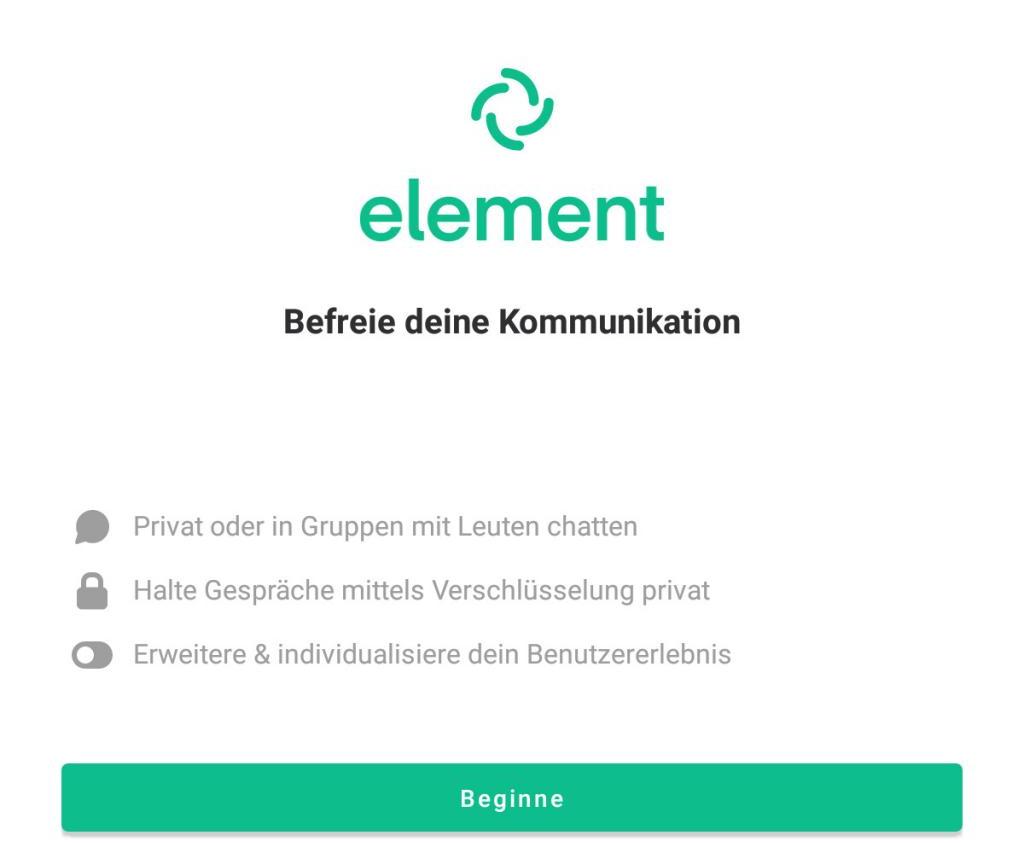
On the landing page, tap “Beginne” (“Get started”).
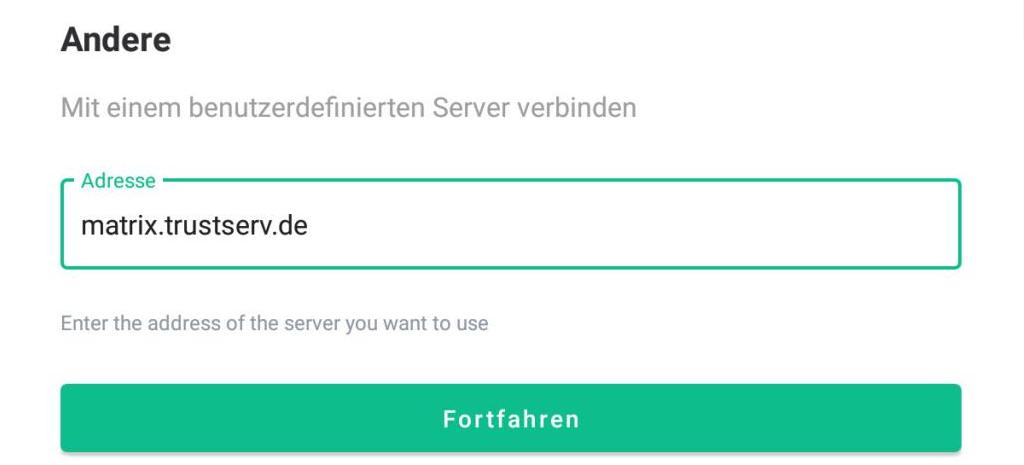
Tap “Andere” (“Other”), enter matrix.trustserv.de in the address field, and tap
“fortfahren” (“Continue”).
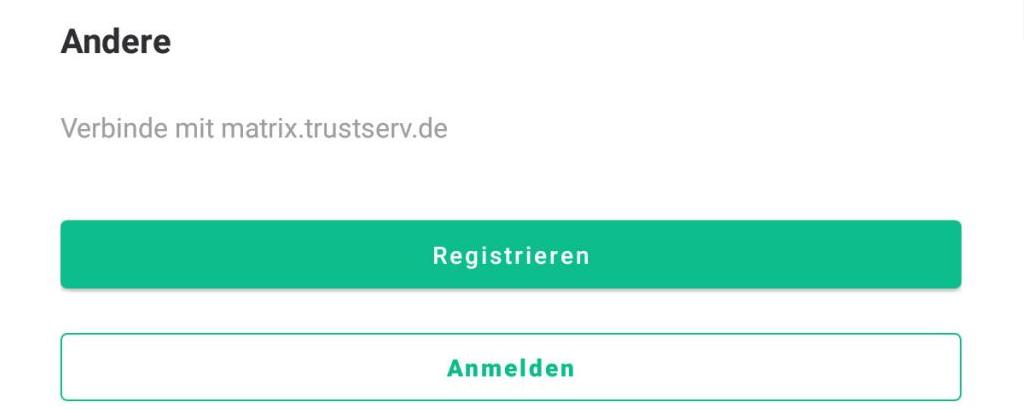
The next screen asks whether you want to register or sign in. Your account already exists, so choose “Anmelden” (“Sign in”).
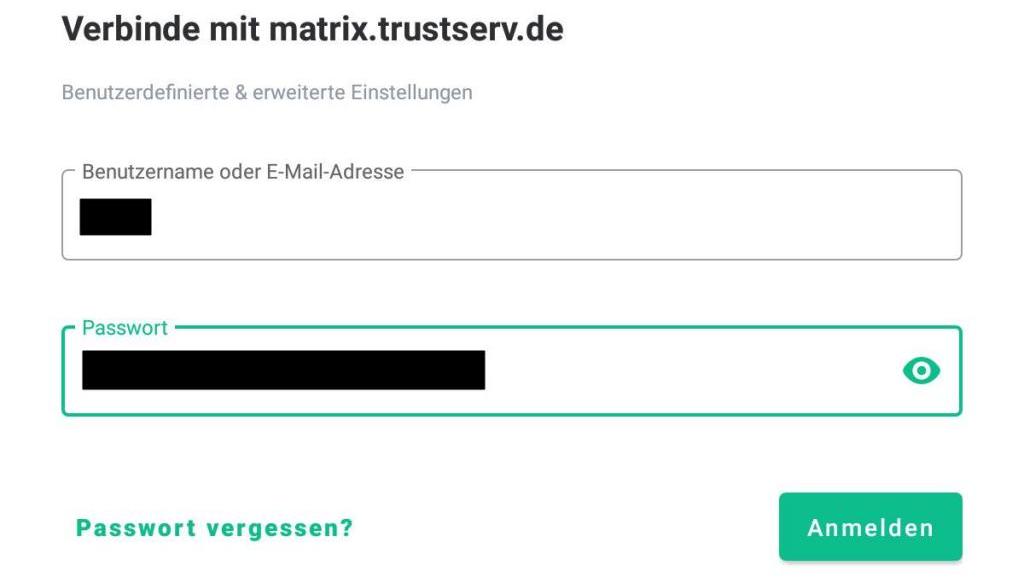
Enter your credentials and tap “Anmelden” (“Sign in”).
4) Adding me as a contact Link to heading
You should now see the Element home screen:
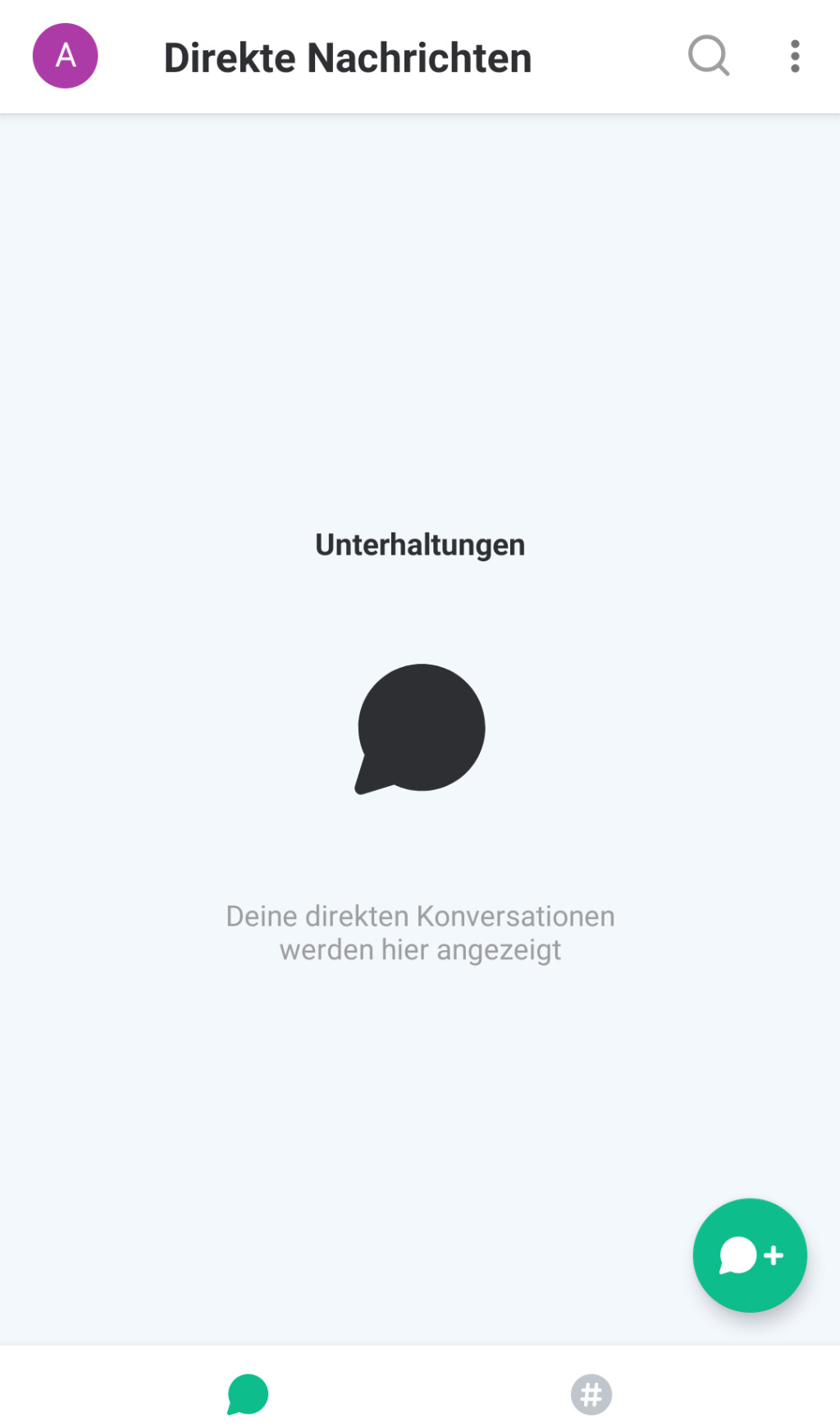
Tap the + in the lower right to find contacts:
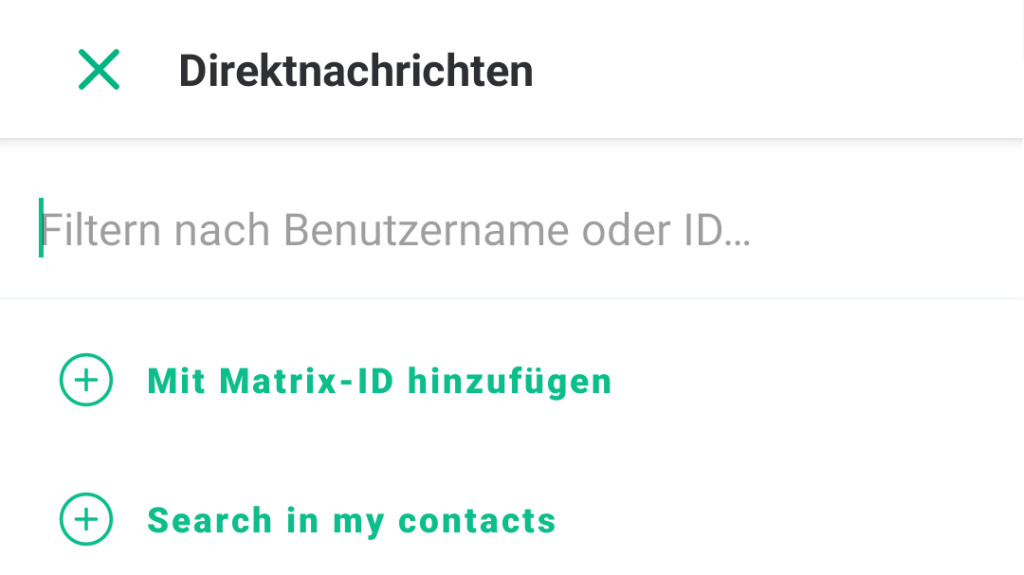
If you already have me in your address book, “Search in my contacts” should find me.
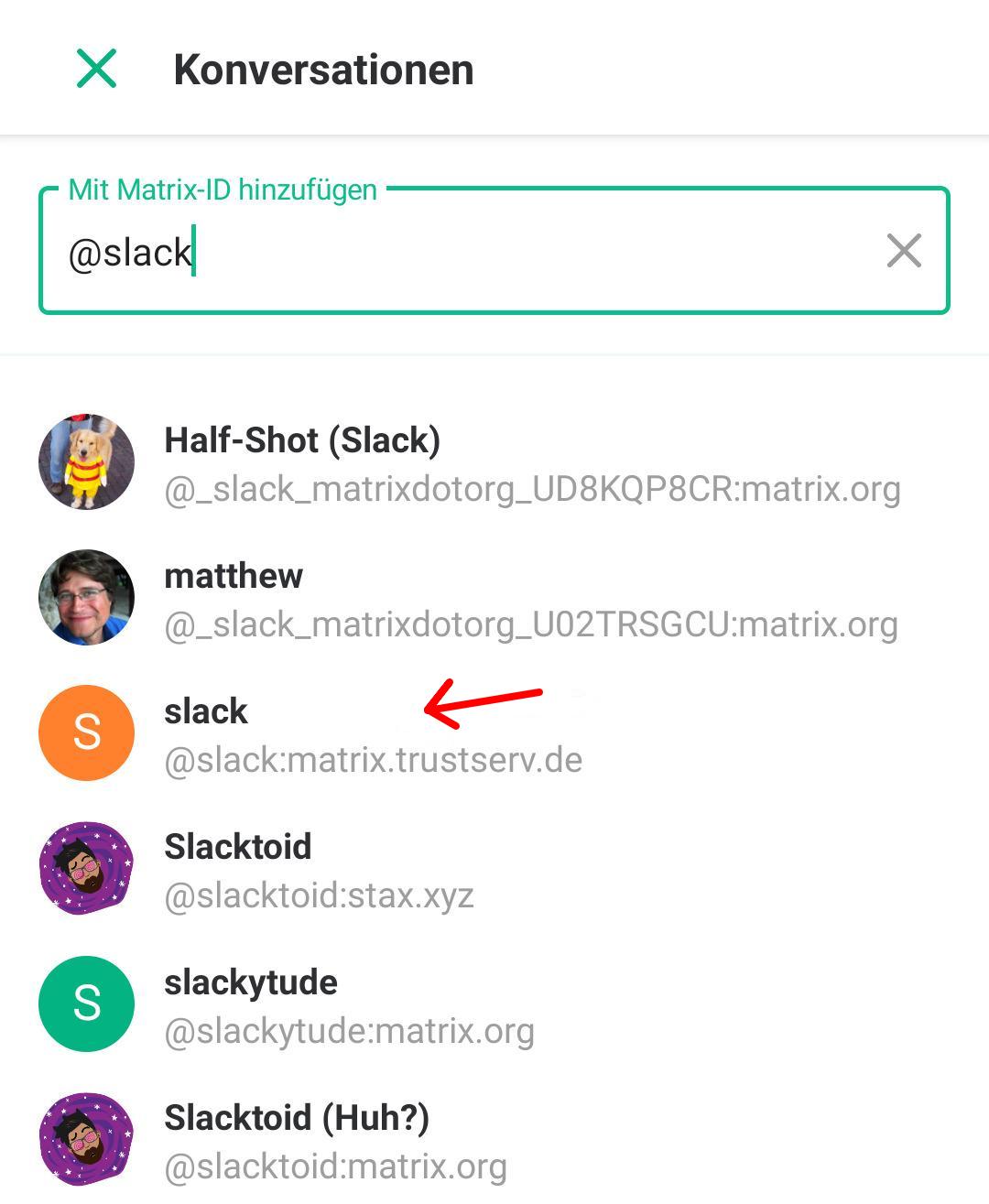
Otherwise tap “Mit Matrix-ID hinzufügen” (“Add by Matrix ID”) and search for
@slack:matrix.trustserv.de:
5) Set up a security key Link to heading
This step is optional, but I’d strongly recommend it.
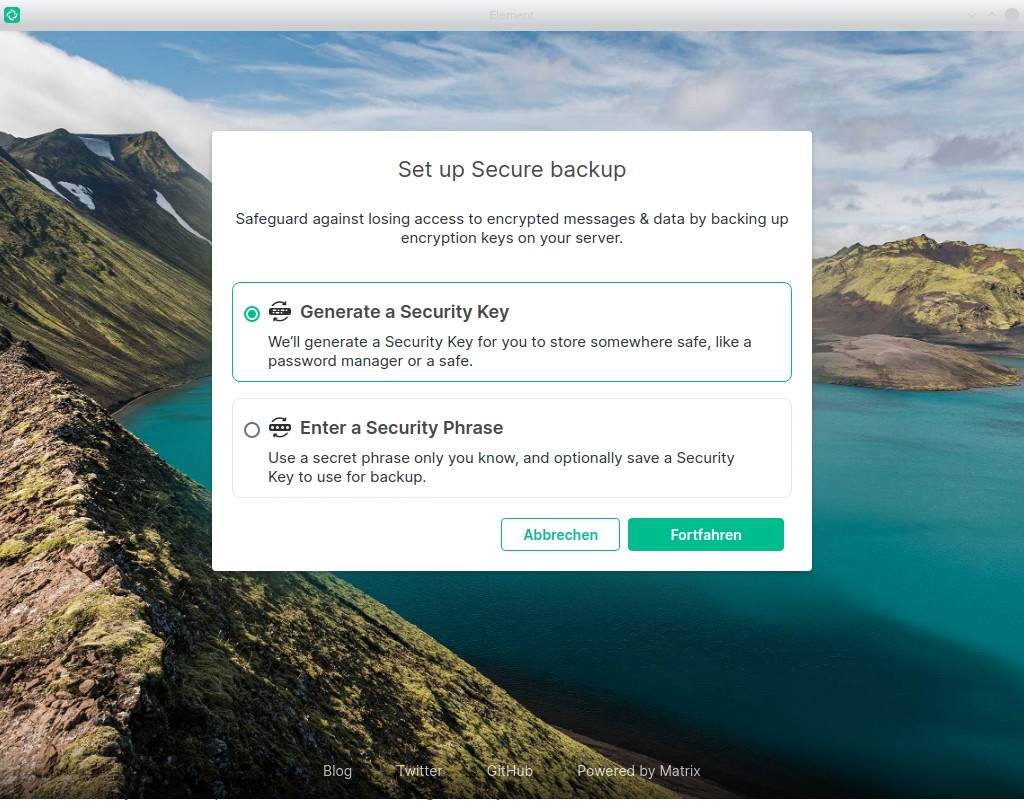
Your messages are end-to-end encrypted, which means the server can’t read them — and neither can a new device, unless it has the key. When you sign in somewhere else or log out and back in, this key is what restores your message history. Without it, that history is gone for good, and there is nothing I can do to recover it from my end.
If you use a password manager (and you should), choose “Generate a Security Key” and store it there. Otherwise pick “Enter a Security Phrase” and choose something you will actually remember.
A note on privacy Link to heading
Matrix works differently from mail when it comes to your data. Anything you send into a federated room is copied to the homeserver of every participant, and those copies are outside my control — I can delete your data here, but not elsewhere. The privacy policy explains what’s stored on this server and for how long.